Troubleshooting BT Cloud Voice
If you’re experiencing problems with BT Cloud Voice, the steps below can help resolve common issues with calls, handsets, Webex and the Business Portal.
Calls and audio problems
Can’t receive incoming calls
Check that call features such as Do Not Disturb or Call Forwarding aren’t blocking incoming calls.
You can check these settings in the BT Cloud Voice Business Portal under Site or Employee settings. Some features can also be checked directly on your IP phone (refer to your IP device user guide).
Poor call quality or silent calls
Try restarting your phone or base station.
Cordless phones
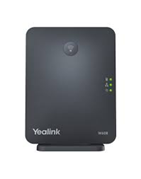
- Locate the base station (pictured below)
- Unplug the power cable
- Leave it off for one minute
- Plug the cable back in
- Wait for the lights to return, then test
Desk phones
- Disconnect the power cable or Ethernet cable (some devices use Power over Ethernet)
- Leave the device off for one minute
- Reconnect the cable
- Wait for the phone to turn on, then test
Phone or handset problems
Error messages on your Cloud Voice handset
Some handset messages indicate a connection problem.
Phone not connecting to the internet
You may see messages such as:
- Network unavailable
- No service
- Not available
- Retrieving network
- The time and date are wrong
Check that the phone (or base station for cordless handsets) is connected to your router using an Ethernet cable. If you’re using a BT Business Hub, make sure the cable is connected to one of the numbered Ethernet ports, not the red WAN port.
Phone not connecting to BT Cloud Voice
You may see messages such as:
- Forbidden
- No matched line
- Not found
- Provision failed
- Timed out
- Upgrade failed
To fix this, restart the phone or base station:
- Switch off the phone, or the base station for cordless handsets
- Leave it off for one minute
- Switch it back on
Resetting the base station
If restarting the phone does not fix the issue:
- Go to Menu and select Settings
- Select System Settings
- Select Base Reset
- Enter the PIN (default 0000)
- The handset will display ‘Reset successful’
- The base station will reboot
- Wait for the lights to return, then test the handset after a few minutes
Phone updating or rebooting
You may see messages such as:
- Data initialising
- Synchronising
These messages may appear for up to five minutes while the phone starts up. If the message appears for longer:
- Switch the phone off
- Leave it off for one minute
- Switch it back on
For cordless handsets, you may also need to restart the base station.
Portal and app problems
BT Cloud Voice Business Portal won’t load
If the BT Cloud Voice Business Portal doesn’t open or is stuck on a blank page:
- Clear your browser cache and cookies
- Try opening the portal in another web browser
- Try opening the portal in a private or incognito window
If you’re unable to sign in, you may need to reset your BT Cloud Voice Business Portal password.
Webex issues
Contacts missing
In Webex, you’ll need to search for contacts by name. Webex doesn’t display a list of your contacts.
Webex not loading
Delete and reinstall the Webex app. Installing the latest version should resolve most loading issues.
Feature configuration problems
Call forwarding not working
Call forwarding can be configured in several places. Follow our Call forwarding setup guide to check where forwarding is applied and reset the settings if needed.
Out-of-hours settings not working
Check your configuration using the Time schedules setup guide. This explains how out-of-hours settings are configured and how to correct them.
Missed calls not going to voicemail
Follow the steps in our Using voicemail guide to check your voicemail settings.
Wrong number showing when making outbound calls
Use the Calling Line ID setup guide to change the number displayed when making outgoing calls.