Get help with your BT Business engineer appointment. We have different advice depending on if you’ve:
- Recently placed a new order.
- Got a fault with your existing service.
- Missed an appointment, or your engineer hasn’t turned up.
If you’ve recently placed a new order
If you’ve recently placed an order, you may have an initial engineer visit or appointment booked to help assess your site, or get your new service up and running.
Find out how to check or change your appointment time slot.
How to check your engineer appointment time slot
There are a few ways to do this:
- Use your order number to check your appointment time slot. Simply go to Track your order, enter your order number and tap the View order status button.
- Or, check your emails or text messages as you we may have sent your appointment time slot to you.
You can also check your appointment time slot by logging in. To do this:
- Go to Track your order.
- Log in using your My Account login details.
- Tap Orders in the navigation bar.
- Select your order.
- Here you’ll be able to view your appointment date and timeslot.
How to amend your engineer appointment
If you need to change your engineer appointment, here’s what to do:
- Go to Track your order.
- Log in using your My Account login details.
- Tap Orders in the navigation bar.
- Select your order.
- If you need to change it, tap Amend this appointment.
- Select a different date and time slot – you can also amend the site contact (person who will deal with the engineer on the day) if you need to.
- Tap Save amends to appointment.
- You can now review details of the changes – if you’re happy, tap Confirm.
You can also use Live Chat (during office hours) on the Track your order page, or using the Live Chat option below. Simply tell us you need to change your appointment time slot, and we’ll do it for you.
If you’ve got a fault
Got a fault with your BT Business service and think you require an engineer call out?
Find out how to report a fault and be allocated an engineer appointment (if needed), and how to check or change your appointment.
How to request a repair engineer appointment
If you’ve got a fault and want to request an engineer appointment, you’ll need to report the fault to us first. To do this:
1. Go to Fix a fault.
2. Tap the Start fixing button.
3. Log in using your My Account login details.
4. We’ll quickly check if there are any issues affecting your services, and will display any faults in red or yellow tiles on the screen.
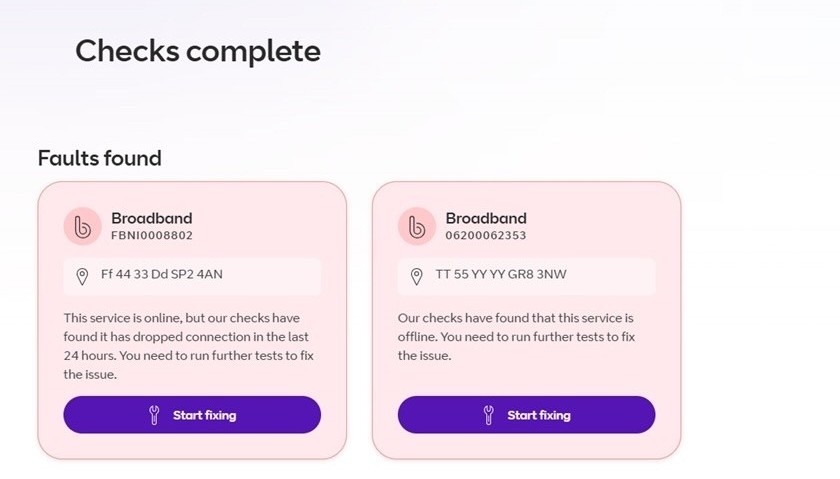
5. If we do find a fault and it requires action from you, the tile will have a Start fixing or Take action button on it – tap the button.
6. If we don’t find any issues during our initial check (and no red or yellow tiles are displayed), scroll to find your service and tap the Report a fault button next to it. Alternatively, you can tap the Get started button.
7. We’ll now ask you some questions, and let you know whether we can fix the fault remotely.
8. If we think the issue will require an engineer to fix, you’ll be able to book your engineer appointment. We’ll offer you the earliest available appointment, or if you’d prefer, you can choose a date and time to suit you.
How to check your repair engineer appointment time slot
1. Go to Track a fault.
2. Tap the Log in to track a fault button.
3. Log in using your My Account login details.
4. Select the relevant fault from the list.
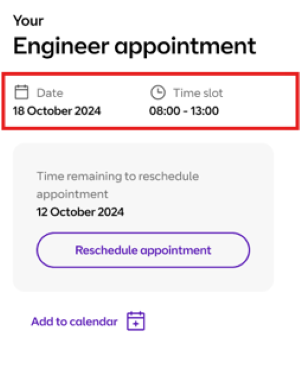
5. You’ll now be taken to the Faults page – go to the Latest updates section.
6. Here you’ll find your engineer appointment time slot and date.
How to amend your repair engineer appointment
1. Go to Track a fault.
2. Tap the Log in to track a fault button.
3. Log in using your My Account login details.
4. Select the relevant fault from the list.
5. You’ll now be taken to the Faults page – go to the Latest updates section.
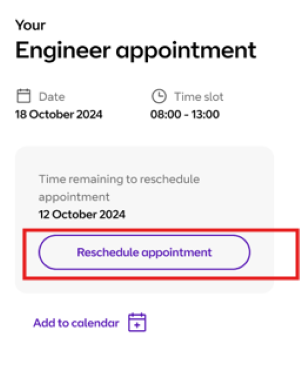
6. Here, you’ll find your engineer appointment. Tap the Reschedule appointment button and follow the instructions.
How to cancel your repair engineer appointment
No longer need your engineer appointment to fix a repair? Find out how to cancel it.
If it’s over 24 hours until your appointment
1. Go to Track a fault.
2. Tap the Log in to track a fault button.
3. Log in using your My Account login details.
4. Select the relevant fault from the list.
5. You’ll now be taken to the Faults page – go to the Latest updates section.
6. Tap the Reschedule appointment button and follow the instructions.
If it’s 24 hours or less until your appointment
You’ll need to contact us (during office hours) using the Live Chat option below. Simply tell us you need to cancel your engineer appointment, and we’ll do it for you.
Missed engineer appointments
I’ve missed my appointment – what happens now?
If you think you won’t be able to make your appointment, it’s best to reschedule it as soon as you can.
You can avoid callout charges by rescheduling your appointment at least 24 hours in advance.
Find out more about engineer call out and costs.
If you’ve missed your repair engineer appointment
If you miss your repair appointment, we’ll try to call you and will leave a voicemail if you don’t answer.
We’ll also send you a text with a link to reschedule your appointment. You’ll have 72 hours to reschedule it – once the 72 hours expires, the repair case will automatically be closed.
The engineer hasn’t shown up – what should I do?
If for some reason the engineer misses the appointment, you’ll be contacted by text, email, or phone to rearrange it. This may not happen straight away.
If it’s a repair engineer appointment, you may find an update in Track a fault when you log in using your My Account login details, although this may not be until the next day.
Note: some engineers do not need to come to your property to fix your fault – they may do repairs nearby, but offsite.
If you’ve still not heard anything after 24 hours, please get in touch with us via Live Chat below.