What is the Battery Backup Unit and how do I set it up?
Your Battery Backup Unit helps keep essential BT Business services running during a power cut.
This guide explains what the Battery Backup Unit does, which BT equipment it supports, how to connect it correctly and how to check it's working.
The Battery Backup Unit supplied by BT is the CyberPower BR1000ELCD.
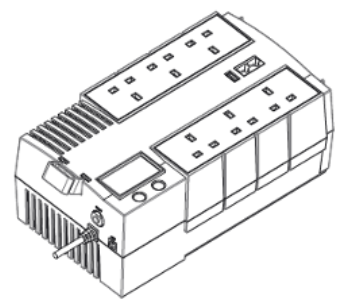
What is a Battery Backup Unit?
A Battery Backup Unit provides temporary power to supported BT Business equipment if your mains electricity supply is interrupted.
When fully charged, the Battery Backup Unit can help keep supported broadband and digital phone services running during a power cut.
This can help you stay connected to the internet and continue making and receiving calls while mains power is unavailable.
Before you begin, make sure your BT Business services are working normally using mains power.
Why would I need a Battery Backup Unit?
A Battery Backup Unit helps keep essential BT Business equipment powered during a power cut.
This means supported broadband and digital phone services can continue working for a limited period while mains power is unavailable. A Battery Backup Unit may be supplied with your BT Business service if your broadband or voice setup relies on equipment that requires mains power to operate.
Battery Backup Units aren't generally available to all BT Business customers. If you're a Cloud Voice Express customer with accessibility needs, or you rely on Cloud Voice Express because of poor EE mobile coverage, we may be able to provide you with a Battery Backup Unit.
If you'd like to find out more, contact us and we'll be happy to help.
Which devices can I connect?
The Battery Backup Unit can power selected BT Business broadband and voice equipment during a power cut.
This Battery Backup unit is intended for use with BT Business broadband and Cloud Voice Express only. The only supported devices to be connected are:
- A BT Smart Hub
- An Openreach ONT
- A Yealink IP Phone base station
Connect your supported devices to the sockets marked “Surge and Battery Protection”.
Connecting additional devices will result in risk that your broadband and Cloud Voice Express service will disconnect within 60 minutes in the event of a power outage.
Getting to know your Battery Backup Unit
The Battery Backup Unit includes several ports and indicators that help you connect and monitor your equipment.
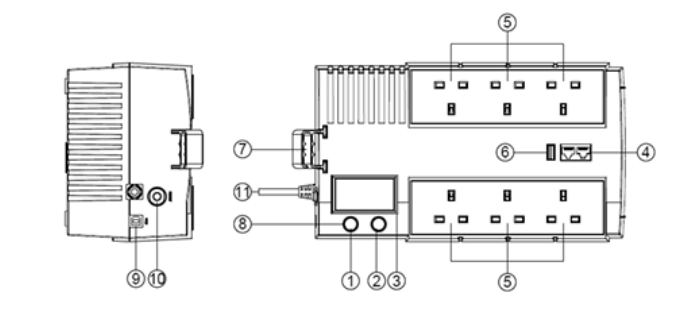
- Power button – Turns the Battery Backup Unit on and off.
- LCD Display Selected Switch – The switch can be used to select the LCD display contents including Input Voltage, Output Voltage and Estimated Run Time. The toggle frequency is set to one time per second. Holding the switch for more than two seconds while running on battery will silence the buzzer.
- LCD Display – High resolution and intelligent LCD display shows all the Battery Backup unit information with icons and messages.
- Communication Protection Ports RJ11/RJ45. Do not use these ports. These are communication protection ports that will protect any standard modem, fax, telephone line, or network cable from surge and spikes.
- AC Outlets – Connect your supported devices to the sockets marked “Surge and Battery Protection”.
- USB Charger Port – Do not use this port. The UPS provides charging for external equipment via this port.
- Cable Collector – Collect the cables connected from the AC outlets in the cable collector.
- Led Indicators – The power on LED lights up when the UPS is ON.
- USB Port To PC – Do not use this port.
This port allows connection and communication from the USB port on the computer to the UPS unit. - Input Circuit Breaker – The Circuit Breaker provides optimal overload protection.
- Input Power Cord – Connect to 240v mains supply.
How to connect your Battery Backup Unit
Before connecting your equipment, make sure the Battery Backup Unit is fully charged and positioned close to the devices you want to protect.
Setup your broadband and Cloud Voice Express
Setup your broadband and Cloud Voice Express following the instructions on our help guide: Set up your Cloud Voice Express cordless phone.
When your internet and phone are working as expected, only then install your battery backup.
Follow the steps below to connect your supported BT Business equipment.
- Step 1. Charge the Battery Backup Unit
- Step 2. Turn on the Battery Backup Unit
- Step 3. Check your devices are connected correctly
Setting up the Battery Backup Unit
To set up your BBU follow these steps:
- Your new Battery Backup unit may be used immediately upon receipt. However, recharging the battery for at least 8 hours is recommended to ensure that the battery's maximum charge capacity is achieved. Charge loss may occur during shipping and storage. To recharge the battery, simply leave the unit plugged into an AC outlet. The unit will charge in both the on and off position.
- With the Battery Backup unit off and unplugged, connect the supported devices into the battery power supplied outlets. DO NOT plug in any unsupported devices.
- Plug the Battery Backup Unit into a 240V wall socket. Ensure the socket is protected by the building’s consumer unit (fuse box) and is not shared with high-demand appliances (e.g. air conditioning, refrigerators, copiers). Avoid using extension leads.
- Depress the power switch to turn the unit on. The power on indicator light will illuminate and the unit will beep.
- If an overload is detected, an audible alarm will emit one long beep. To correct this, turn the Battery Backup Unit off and connect only the supported devices to the battery power supplied outlets. Wait 10 seconds. Make sure the circuit breaker is depressed and then turn the Battery Backup Unit on.
- Your Battery Backup Unit is equipped with an auto-charge feature. When the Battery Backup Unit is plugged into an AC outlet, the battery will automatically recharge.
- To maintain optimal battery charge, leave the Battery Backup Unit plugged into an AC outlet at all times.
- To store your Battery Backup Unit for an extended period, cover it and store with the battery fully charged. Recharge the battery every three months to ensure battery life.
Discover more about your Battery Backup Unit
How does the Battery Backup Unit work during a power cut?
When your mains power supply is interrupted, the Battery Backup Unit automatically switches from mains power to battery power.
This helps keep supported broadband and digital phone equipment running without needing any action from you.
The amount of backup time available depends on the number and type of connected devices, as well as the condition of the battery.
You may notice equipment lights briefly flicker while power sources switch. This is expected and does not usually indicate a fault.
When a power cut occurs:
- The Battery Backup Unit automatically switches to battery power.
- Supported connected devices continue receiving power.
- Broadband and digital phone services can continue operating for at least 60 minutes, depending on connected equipment and battery condition.
You may notice lights on your equipment briefly flicker while power sources switch. This is normal.
How long will the battery last?
The amount of backup time depends on the number and type of devices connected to the Battery Backup Unit.
In most cases, supported broadband and digital phone equipment can continue operating for at least 60 minutes during a power cut.
Actual battery life may vary depending on usage and battery condition.
Can I connect other equipment?
Only connect equipment that has been approved for use with the Battery Backup Unit.
Connecting unsupported devices may reduce battery performance or damage your equipment.
This Battery Backup unit is intended for use with BT Business broadband and Cloud Voice Express only. The only supported devices to be connected are:
- A BT Smart Hub
- An Openreach ONT
- A Yealink IP Phone base station
What do the charging lights mean?
The Battery Backup Unit uses indicator lights to show the current charging and battery status.
- A red light usually indicates that the battery is charging.
- A green light usually indicates that the battery is fully charged and ready to use.
Refer to the product diagram supplied with your Battery Backup Unit for details of all indicator lights.
What should I do if the unit won't turn on?
If the Battery Backup Unit doesn't turn on:
- Check that it is connected to mains power.
- Check that the power adaptor is securely connected.
- Allow time for the battery to charge if the unit has recently been unpacked.
- Press and hold the power button if required.
If the unit still doesn't turn on, contact BT Business support.
Can I leave it plugged in all the time?
Yes. We recommend leaving the Battery Backup Unit connected to mains power at all times. This keeps the battery charged and ready to provide backup power if there's a power cut.
What happens when mains power returns?
When mains power is restored, the Battery Backup Unit automatically switches back to mains power. The battery will then begin recharging so it's ready for future use.
You don't need to reconnect your equipment or restart the Battery Backup Unit.
Does the battery need replacing?
The battery is designed to provide reliable backup power over its expected lifespan.
Over time, all rechargeable batteries naturally lose capacity and may eventually need replacing. If you notice a significant reduction in backup time or suspect there's a problem with the battery, contact BT Business support for advice.
Who should I contact if I need help?
If you need help setting up or using your Battery Backup Unit, visit BT Business Help.
If you're experiencing a fault with the Battery Backup Unit or your BT Business service, contact BT Business support. Have your account details and product information ready when you get in touch.
Need help setting up your BT Business products?
Setup your broadband and Cloud Voice Express
Setup your broadband and Cloud Voice Express following the instructions: Set up your Cloud Voice Express cordless phone.
Looking for help with other BT Business products and services?
Our getting started guides can help you set up and start using your BT Business equipment and services.
- Smart Hub setup help guide
- Cloud Voice setup help guide
- Hybrid Connect setup help guide
- Digital Voice setup help guide
- Full Fibre setup help guide
For more help with BT Business products, visit our Business Help hub.