Setting up your Yealink W59R additional DECT handset on Digital Voice for Business
Follow these steps to set up your Yealink W59R additional DECT handset.
The W59R is an additional handset. You’ll need an existing Yealink W70B base station that's connected and working before you can register and use it.
Need help setting up your W70B base station first? Follow our Yealink W73P setup guide.
What’s in the box?
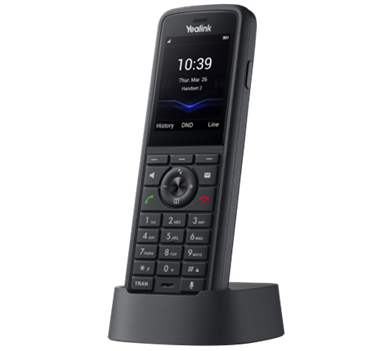
You should have:
- Yealink W59R additional handset (pictured).
- Charging cradle (pictured).
- Power adapter.
- Rechargeable battery.
- Belt clip.
- Decorative cover.
- Quick start guide.
How to set up your handset
Once you've set up your W70B base station, follow these three easy steps to set up your handset.
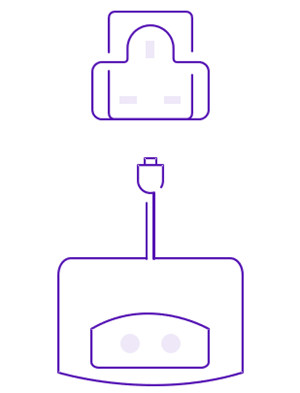
1. Power up the charging cradle
Put the charging cradle on a stable, dry surface close to where you're most likely to use your handset.
Connect the cradle to the supplied power adapter, then plug the adapter into a mains socket.
2. Charge your handset
1. Put the supplied rechargeable battery into your handset.
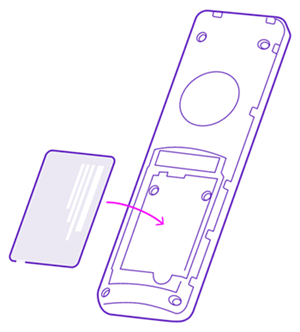
2. Refit the battery cover securely.
3. Switch your handset on.
4. Place the handset securely into the charging cradle.
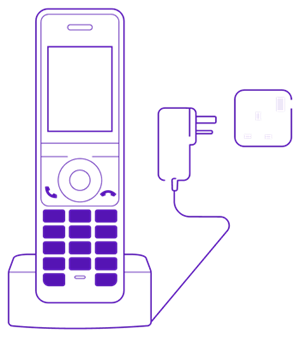
A full charge takes less than four hours. You’ll see the battery status at the top of the screen while your handset is charging.
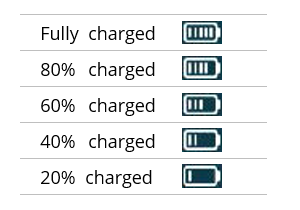
Important: switch off your handset before taking out the battery. Don’t use the battery if it’s damaged.
3. Register your handset
You’ll need to register your W59R handset to your existing W70B base station.
1. Press and hold the Paging button  on the base station until the registration LED starts flashing.
2. Press the Reg soft key on your handset.
3. Your handset will search for and register to the base station.
Once registration is complete, the handset will briefly show Handset Subscribed. Its name and number will then show on the home screen.
Check your handset is set up
Your handset may need to update its firmware after it connects. This can take some time.
Once everything is updated and ready to use, your Digital Voice for Business phone number will show on the screen. 
If something has gone wrong, you’ll see the unsuccessful setup icon. 
More setup help
My handset won’t register
If pressing Reg doesn’t work, try registering your handset manually:
- Open the menu on your handset.
- Select Register Handset.
- Choose your base station from the list of nearby devices.
- Confirm your selection.
- Enter the base station PIN. The default PIN is 0000.
- Press the Done soft key.
When registration is complete, the handset will briefly show Handset Subscribed followed by the base station information.
Your handset name and number will then show on the home screen.
How do I check my handset is registered?
Press the Paging button on your base station.
If your handset rings, it’s registered to the base station.
If Unregistered appears on the handset screen, follow the registration steps above.
How do I check my base station is connected to the network?
Press the Paging button on your base station.
You should see its IP address on your handset screen.
If the IP address shows as 0.0.0.0, the base station isn’t connected to your network. Ask your IT team for help.
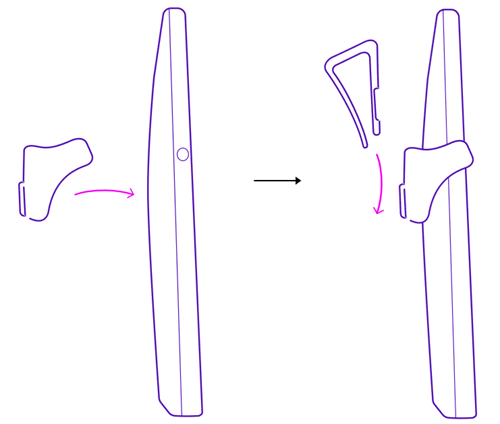
How do I attach the belt clip?
Attach the supplied belt clip firmly to the back of your handset and check it’s locked in place before use.
Want to learn more?
Learn more about using your new handset, and your Digital Voice for Business service.
More about your Yealink W59R additional DECT handset
If you want:
- More detailed setup instructions
- To learn how to use your handset with Digital Voice for Business
Check out our Yealink W59R additional DECT handset user guide (PDF, 9.2MB).
More about Digital Voice for Business
Now your handset’s all set up, learn more about using your digital phone service on our main Digital Voice for Business help guide.