Your Cisco ATA (Analogue Terminal Adapter) 192 lets you connect one or two analogue phones to a digital or VoIP network. Follow the steps below to get set up.
What’s in the box?
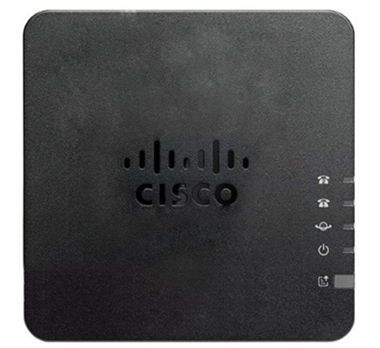
- Cisco ATA 192 (pictured)
- Ethernet cable
- Mains power adapter
- Phone socket adapter
How to connect the cables
- Connect the NETWORK socket on the back of the box to your network port using the Ethernet cable.
- Connect the power cable to the box and then plug it into the mains (the Cisco ATA 192 does not support Power over Ethernet).
- Plug your analogue phone into the Phone 1 socket using either the phone socket adapter or directly, if your phone has an RJ11 phone cable.
- Optional: if your service includes a second analogue line, connect the second analogue phone to the Phone 2 socket.
- Optional: connect a computer or other Ethernet device to the ETHERNET socket. Use NETWORK, not ETHERNET, to connect the ATA to your network.

Setting up your adapter
Once you’ve connected it to the network and plugged it in, it’ll do a series of updates. This may take a while so please be patient while it does what it needs to do.
When the Cisco ATA 192 has finished updating and it’s ready for action, the Phone 1 indicator light will turn green. If this doesn’t happen, please call your service desk. You can now start making calls through your Cisco ATA 192.
If your service includes a second analogue line, the Phone 2 indicator light will also turn green when that line is ready.

999 or 112 emergency calls
Your Digital Voice for Business number is registered to a specific address, so when you make a 999 or 112 call from your phone number, that’s the address the emergency services will see.
If you use Digital Voice for Business at a different address, the registered address won’t automatically change. So if your work location changes, please let your administrator know so they can update your registered address.
You might not be able to make 999 or 112 calls if there’s a power or network failure, or you’re using the service from an app or mobile phone.
Want to learn more?
More about your Cisco ATA 192
For more information about your analogue terminal adapter:
View our Cisco ATA 192 user guide (PDF, 344KB).
More about Digital Voice for Business
Now your Cisco ATA 192 is all set up, learn more about using your digital phone service in our Digital Voice for Business help guide.