Business Antivirus Detect and Respond is now Endpoint Threat Protect
On 20 May 2026, Business Antivirus Detect and Respond was renamed Endpoint Threat Protect.
You may see the name on your bill, help pages or product information.
Nothing else has changed:
- Your service remains the same
- Your level of protection is unchanged
- Pricing and contract terms stay the same
The name was updated to better reflect how the service protects your devices against modern cyber threats.
What is Endpoint Threat Protect?
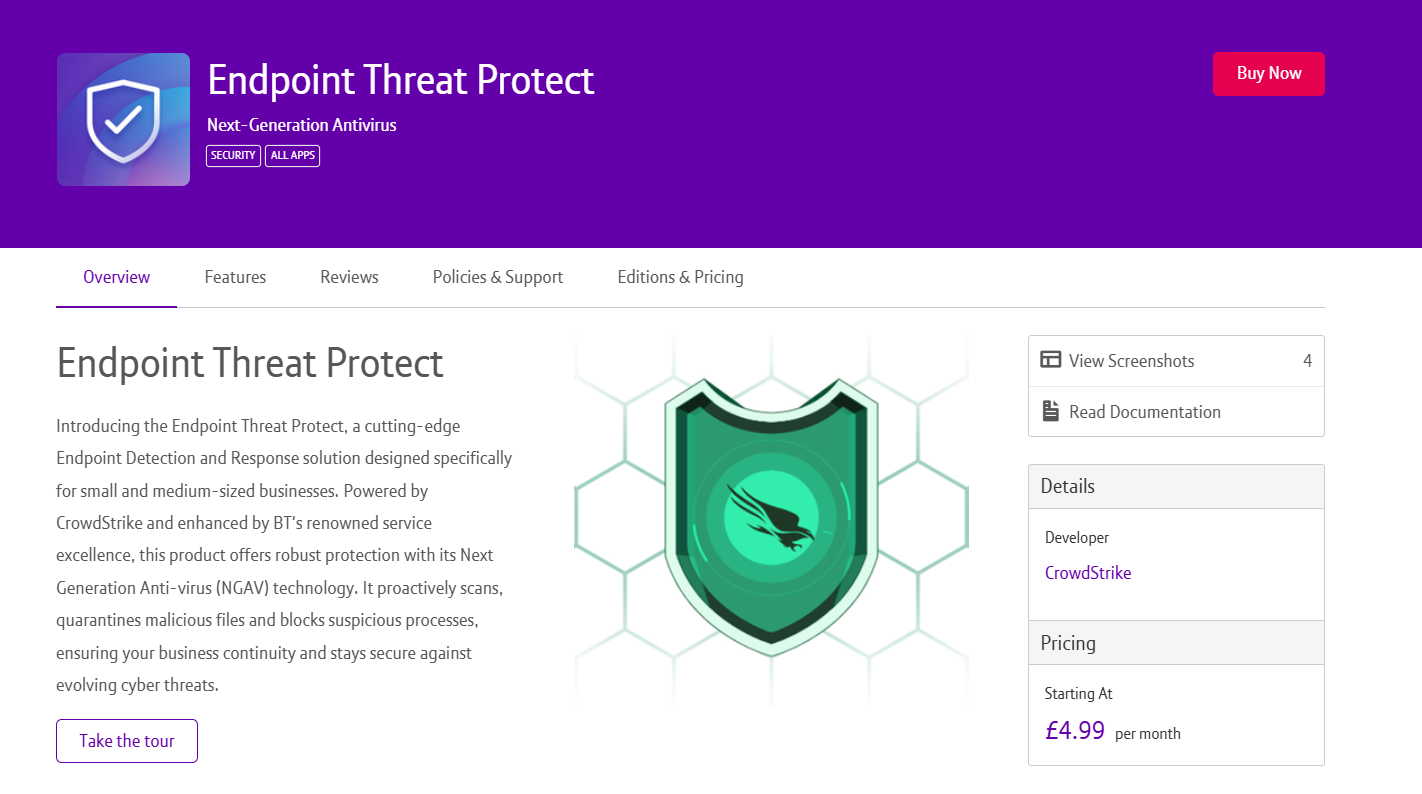
Endpoint Threat Protect is a cutting-edge endpoint detection and response solution designed specifically for small and medium-sized businesses. Powered by CrowdStrike Falcon Go, and enhanced by BT's renowned service excellence, this product offers robust protection with its Next Generation Antivirus (NGAV) technology.
Endpoint Threat Protect proactively quarantines malicious files, blocks suspicious processes, and contains endpoints at the network level, ensuring your business stays secure against evolving cyber threats.
Key features include:
- Easy setup
- A simple user interface
- Next Generation Antivirus
- Endpoint control and response
- USB device control
How to activate Endpoint Threat Protect
If you’re accessing it for the first time
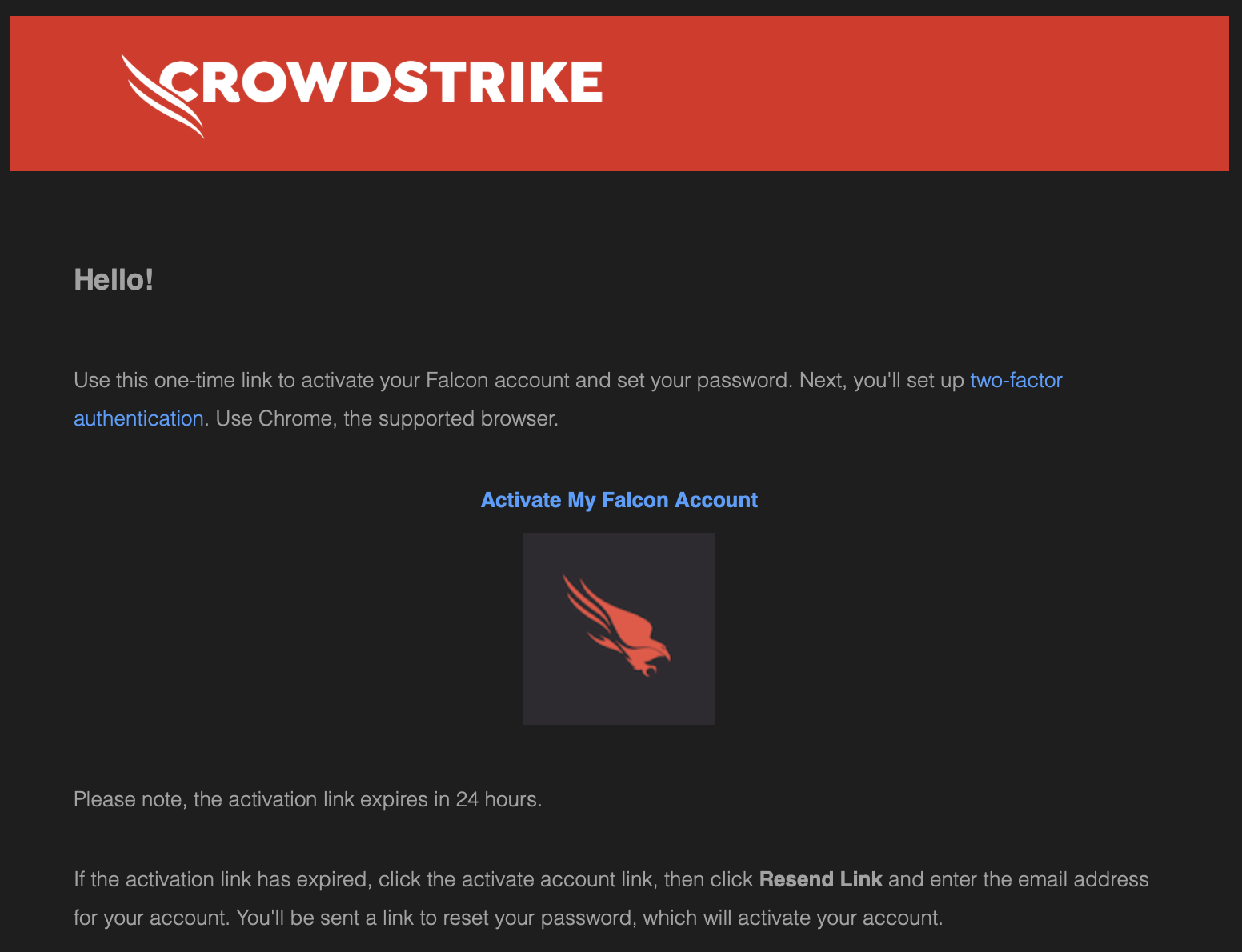
Once you’ve purchased Endpoint Threat Protect, you’ll be sent an email on how to log in for the first time and activate your account. Click the ‘Activate My Falcon Account’ link.
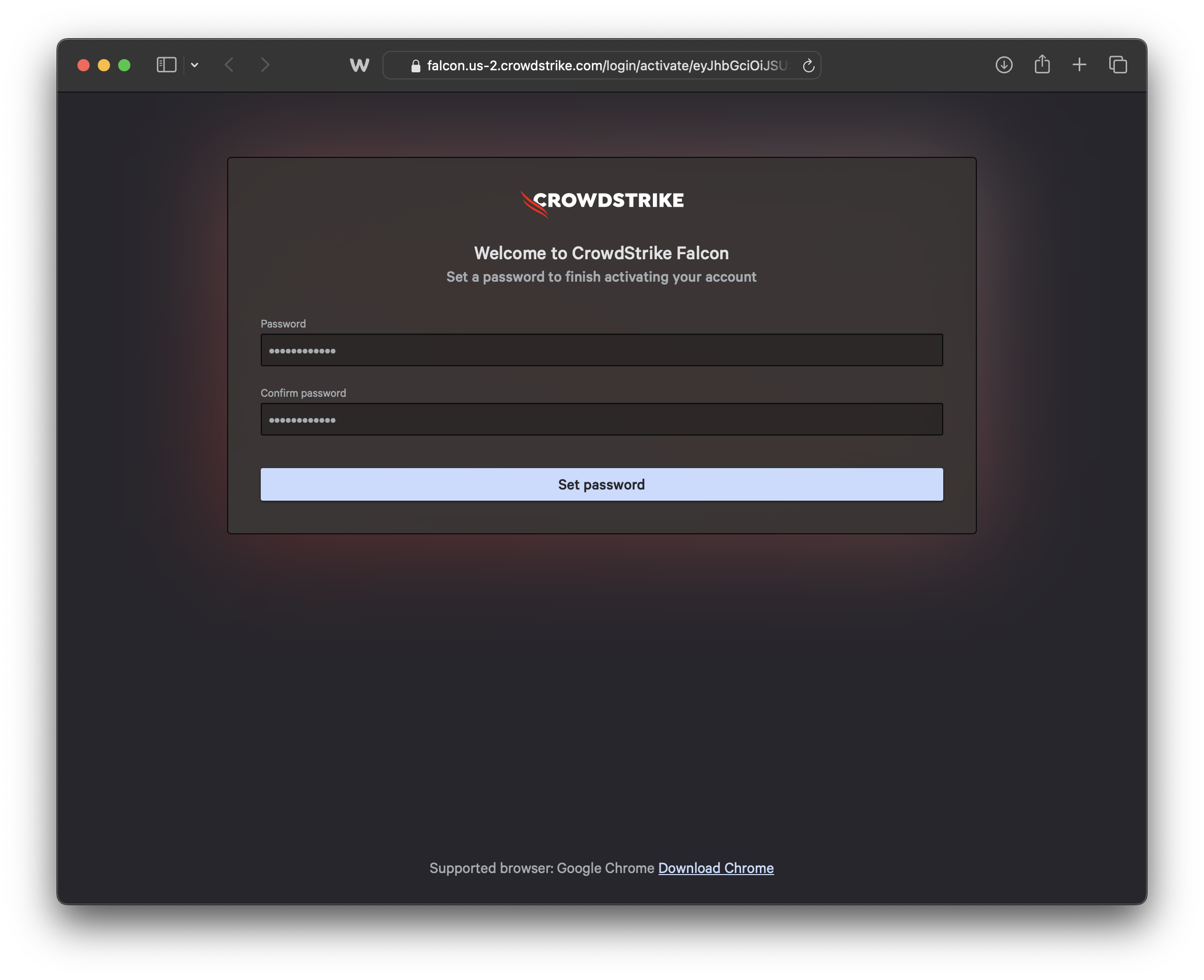
1. You’ll be asked to set a secure password for your account.
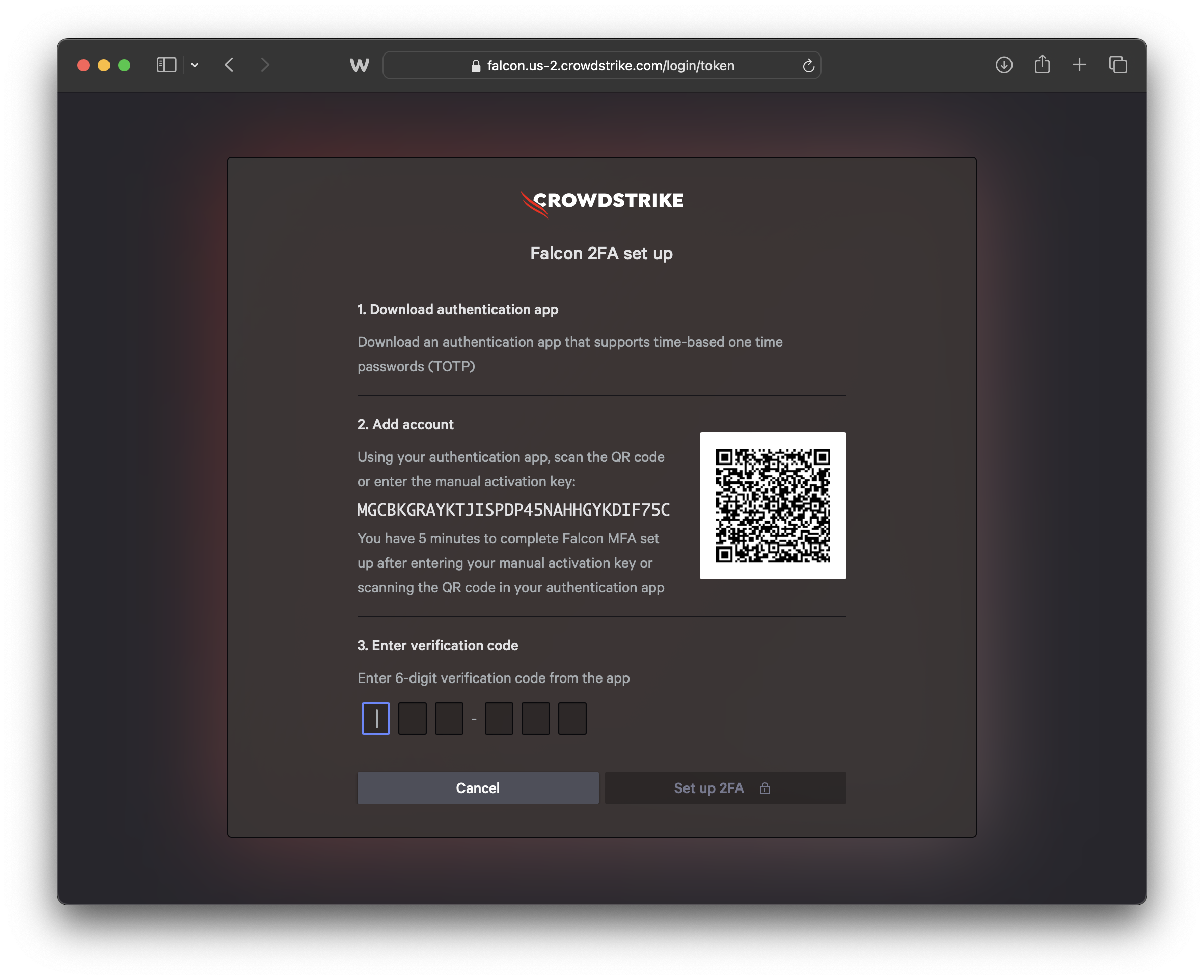
2. Next, you’ll be prompted to set up 2 Factor Authentication (2FA). You will need an app that supports time-based one-time passcodes to complete this step. Follow the steps on screen to finish setting up 2 Factor Authentication.
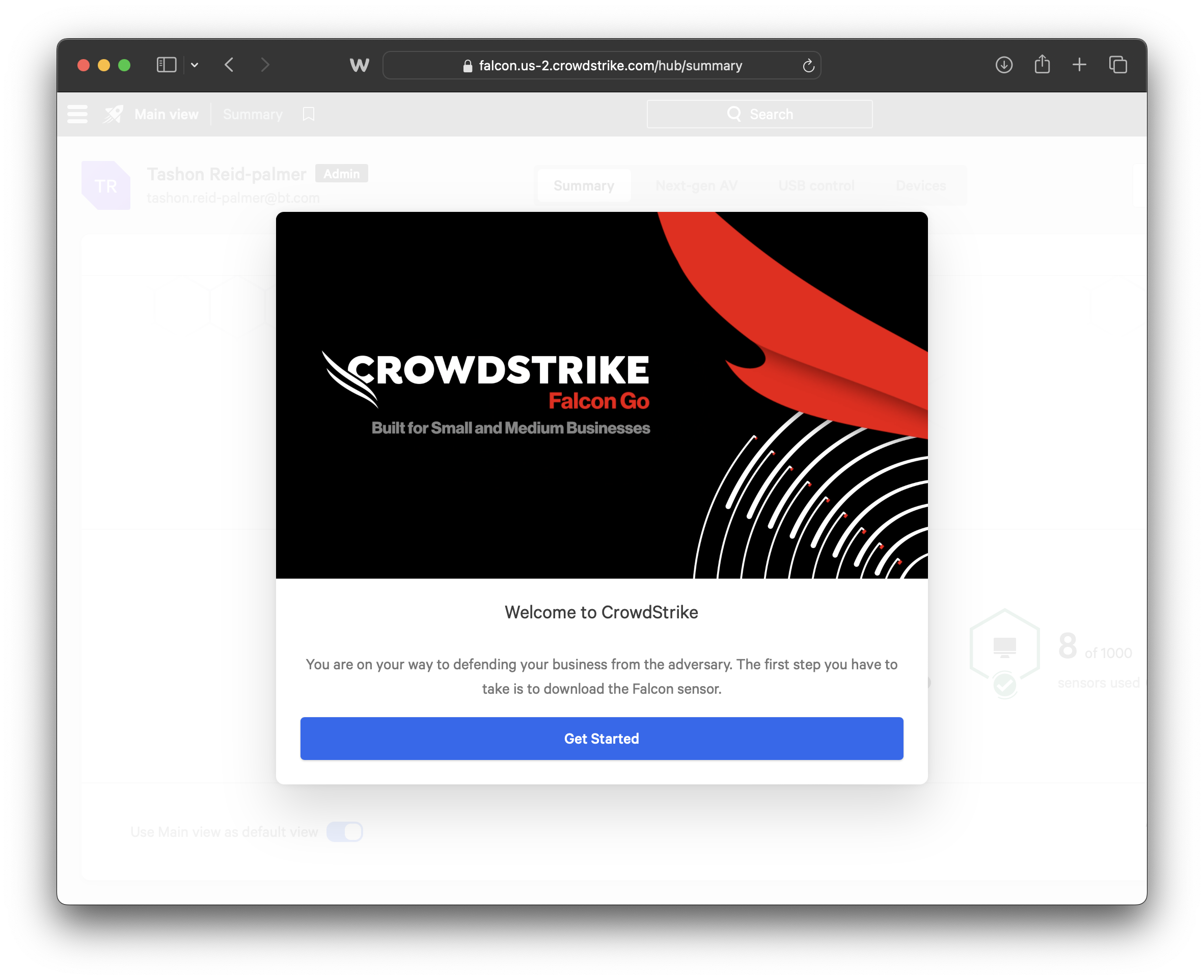
3. When you log in for the first time, you’ll be greeted with a welcome wizard that contains several informative videos to help you familiarise yourself with the user interface.
4. Once you’ve completed all the steps in the welcome wizard, you’ll be able to start using your new product.
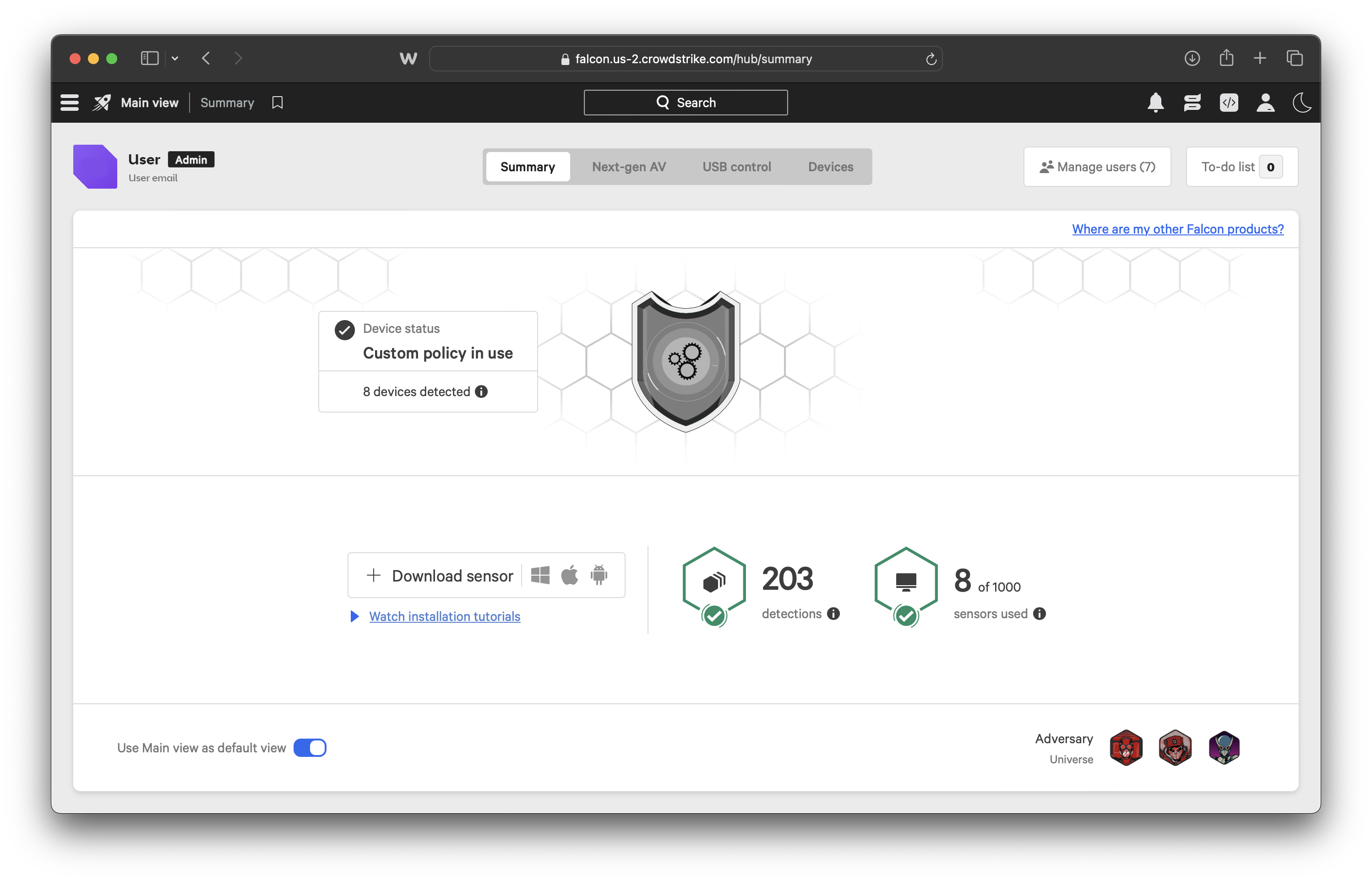
After the initial setup, you’ll be able to access your product through BT Business Apps marketplace.
Accessing Endpoint Threat Protect after initial set up
To access Endpoint Threat Protect going forward, you’ll need to use your BT My Account details to log in to BT Business Apps.
- Once you’ve logged in to BT Business Apps, go to your My Apps tab.
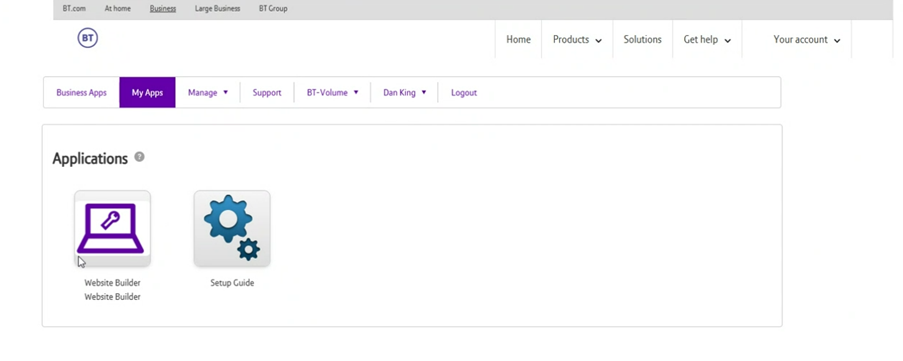
2. Select the Endpoint Threat Protect tile.
3. You’ll be taken to the Crowdstrike webpage and be prompted to log in to Crowdstrike.
4. Then, log in with your Crowdstrike credentials – these will have been provided to you on the email we sent you.
You’ll now be able to manage your service.
Frequently asked questions
How do I deploy a sensor?
For Windows:
Alternatively, CrowdStrike provides a written tutorial that covers both manual and automatic Windows installations.
For MacOS:
Alternatively, CrowdStrike provides a written tutorial that covers both manual and automatic MacOS installations.
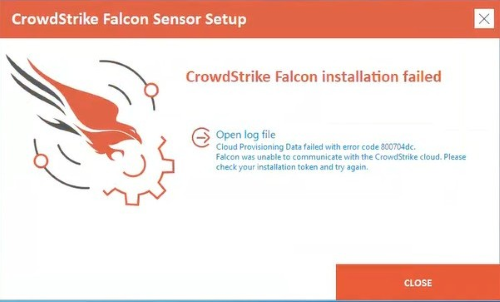
Why am I getting an 'installation failed' screen, when installing a sensor?
For Windows:
For MacOS:
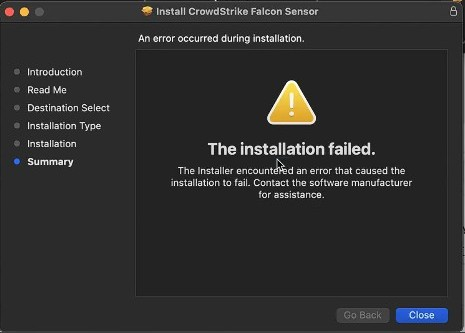
This means you've used all your licences. You won't be able to deploy any more sensors until you delete an old device, or purchase more licences.
To buy more licences, contact your Sales team or log in to your BT Business apps account to purchase.
Where can I learn more about using Endpoint Threat Protect?
You can find user guides and technical documentation in the Endpoint Threat Protect Portal. Log in to Crowdstrike and you’ll be taken to the support content.
Are there any minimum system requirements?
- All supported sensor versions for Windows, Mac, and Linux on workstations.
- All supported sensor versions for Android 9.0 and later and iOS 15 and later mobile devices.
How can I purchase Endpoint Threat Protect?
- If you’re a new customer, please get in touch with our sales team via our contact page.
- If you’re an existing customer, you can contact your sales team or order online following these simple steps:
- First, log into My Account. Not registered with My Account? Create an account.
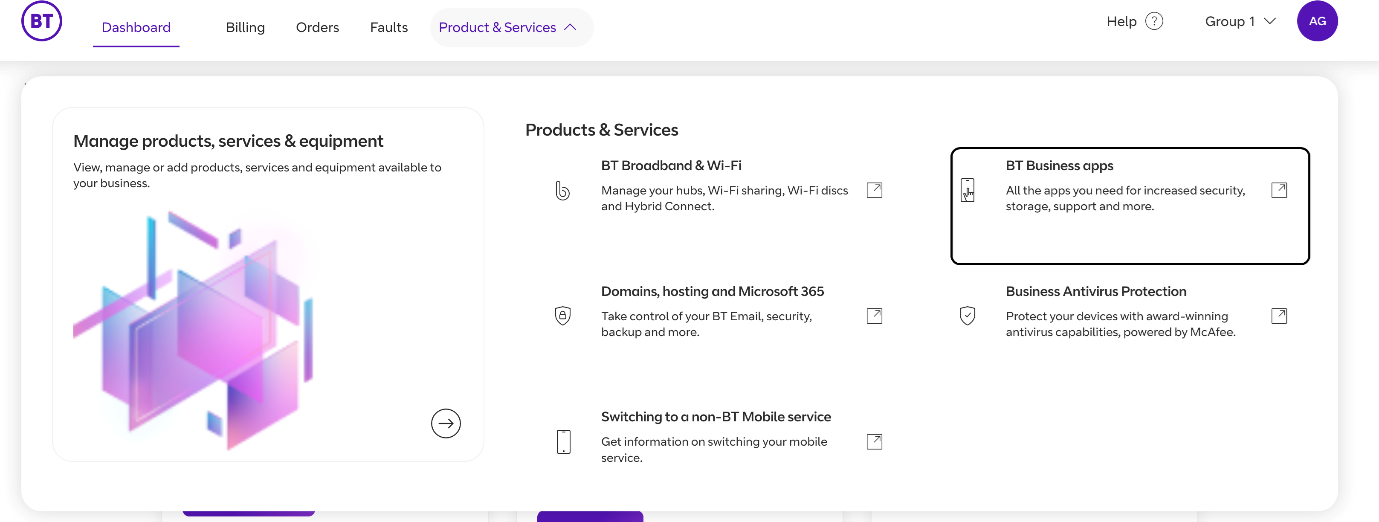
2. From the Dashboard, go to Products and Services and click on BT Business apps.
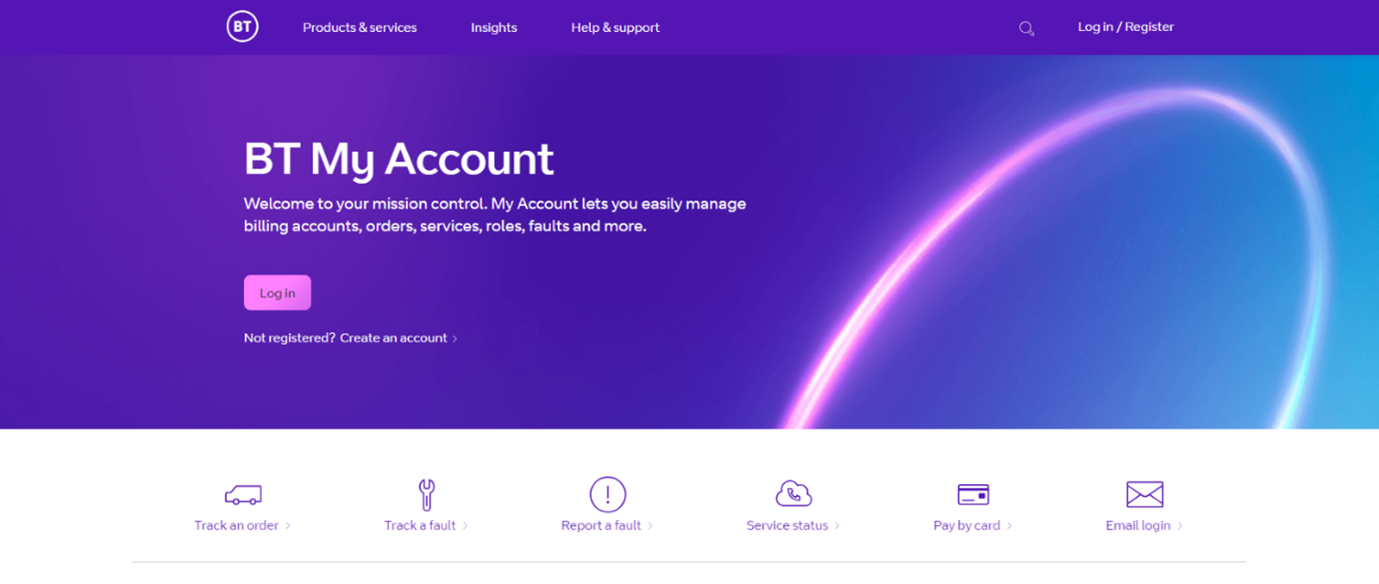
3. The BT Business apps marketplace, will launch.
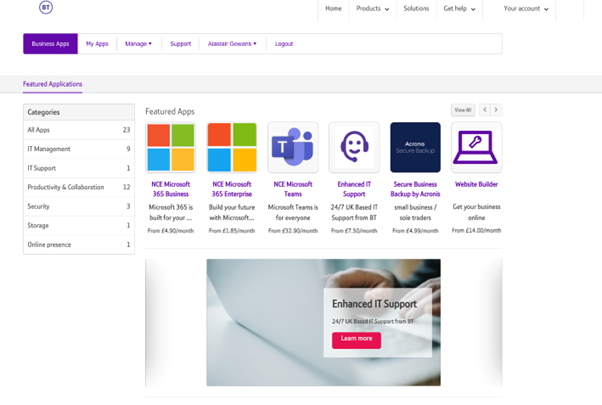
4. Click Security from the categories on the left-hand side.
5. Then, in Featured Applications, select Endpoint Threat Protect.
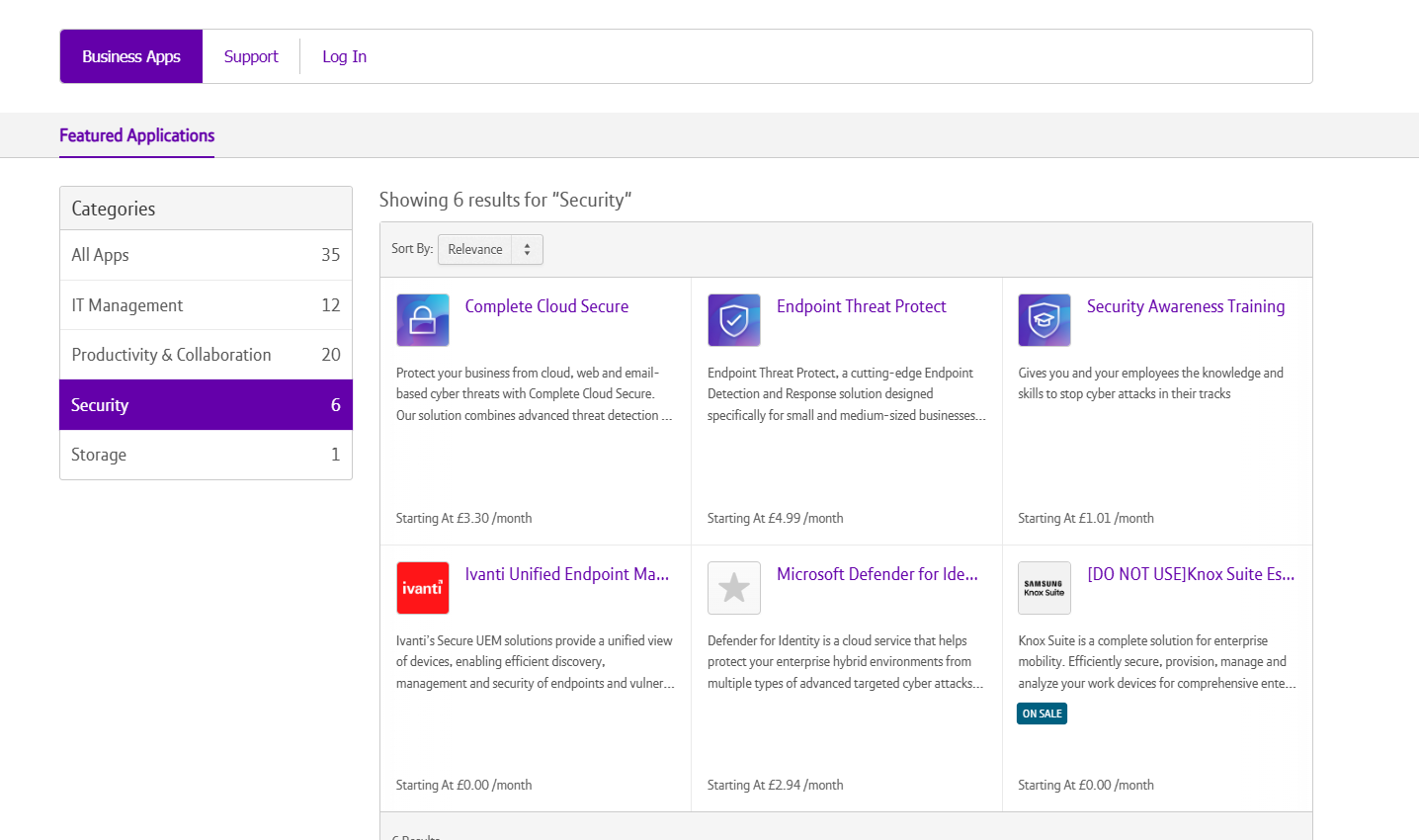
6. Click Buy Now in the top right corner, and follow the on-screen steps to purchase the product.
7. Once you’ve purchased Endpoint Threat Protect, you’ll receive an email which will contain instructions to set up your new product.
Troubleshooting Endpoint Threat Protect
If you experience any issues or faults with the service and need to contact our service team, please log into faults and repairs and follow the on-screen instructions. You’ll need to log in with your BT My Account username and password.
If you’ve forgotten your BT My Account user name or password, find help at I've forgotten my username or password. What should I do?