My Account (also known as Customer Hub) is our online portal for:
- Managed service customers in the UK.
- International managed service customers.
This means you can use My Account if you have a managed service contract and are based in the UK or the rest of the world.
When you log in to My Account, you can:
- Report service incidents and track them.
- Raise service requests and track them.
- Find out about planned BT works, or add let us know about your own planned works.
- View your site inventory.
- Access applications designed to support managed service accounts, from reporting to product configuration apps.
Getting set up on My Account
To get set up on My Account, please contact your BT account team.
To help protect your organisation, we provide extra processes around setting up users. This is to make sure that only those who need access, get access.
Logging in to My Account
1. First, go to our My Account page with two login options:
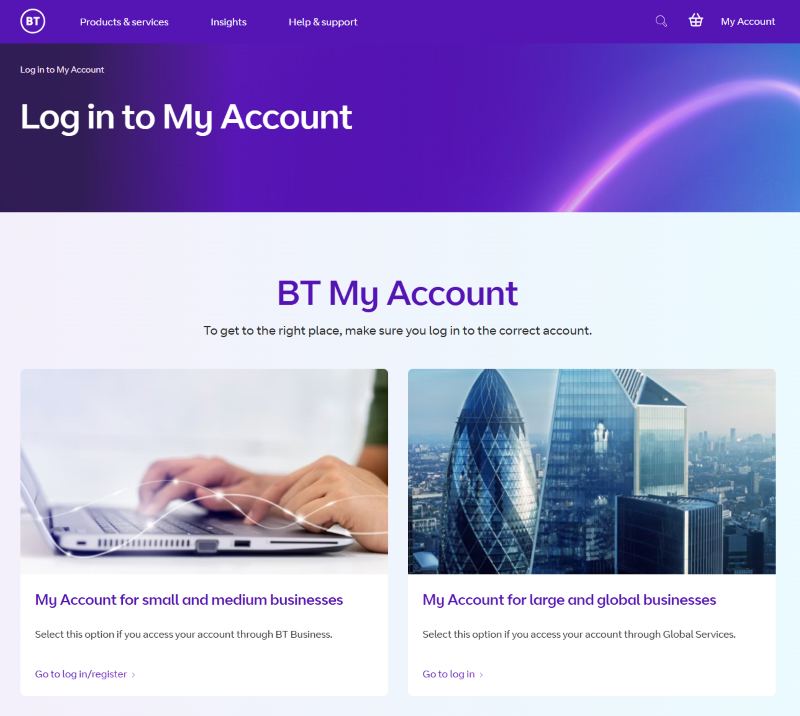
2. Select the My Account for large and global businesses option, which’ll take you to our My Account page for international and managed services page.
3. You’ll now need to accept the terms and conditions before logging in – you can do this by selecting the Accept and log in button.
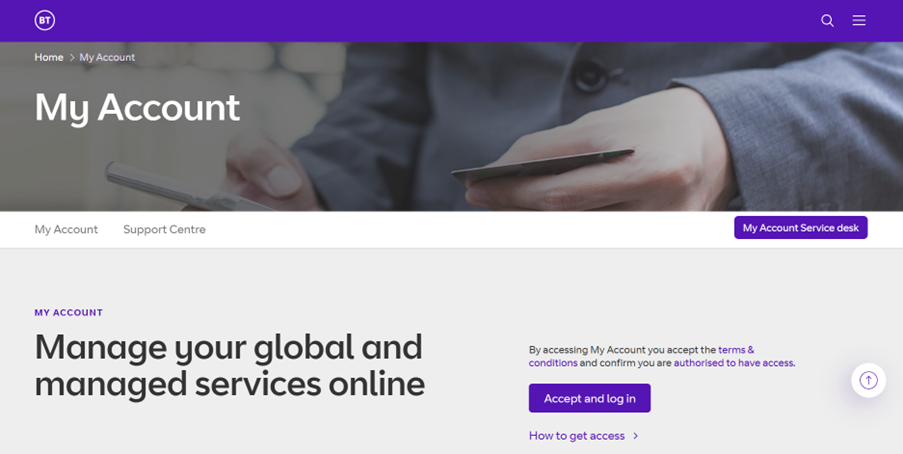
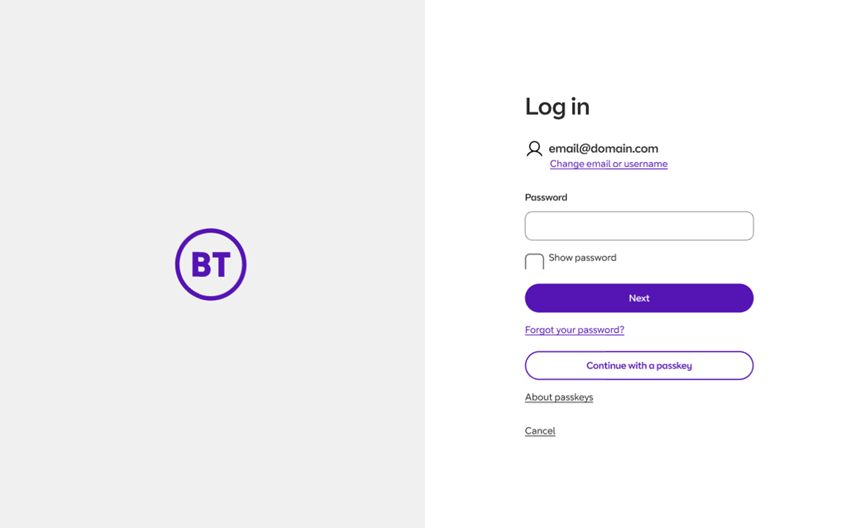
4. Once you’ve done this, enter your email or username and select Next.
5. Then enter your password, and select Next.
6. If you’ve previously set up two-factor authentication, you may be asked to enter a one-time passcode so we can verify your identity. If prompted, simply enter the six-digit code we send to you.
If you haven’t set up two-factor authentication yet, you’ll be asked to set it up. Follow our instructions below to find out how.
7. Once you’ve done this, you’ll then be taken to your My Account dashboard.
Setting up two-factor authentication
If you haven’t already, you’ll be asked to set up two-factor authentication (2FA) when you log in.
This will boost your security as we’ll be able to verify it’s really you when someone tries to log in to your account.
To set it up:
1. Simply enter your mobile phone number and we’ll send you a one-time passcode.
Note: if you’re not based in the UK, you’ll need to include your country code too. An example of an Australian number would be 610123456789.
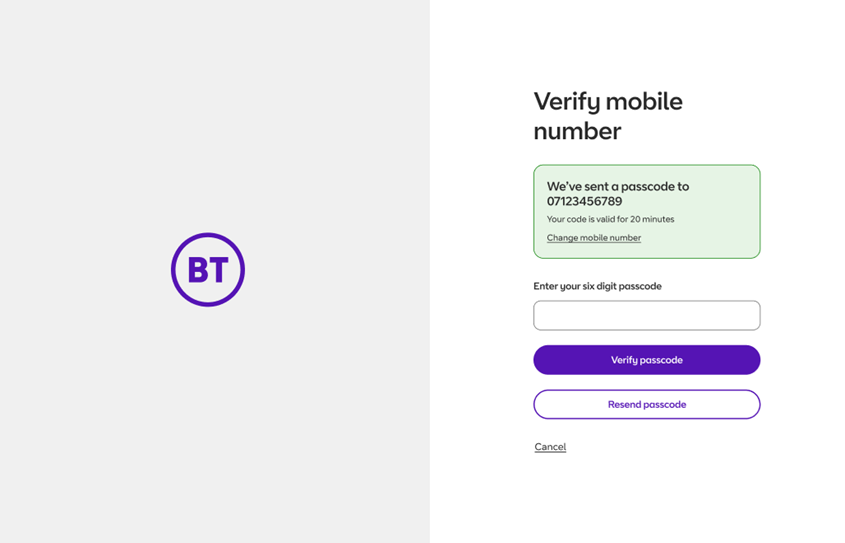
2. When you receive the passcode, enter it and select the Verify passcode button.
If you’ve not received the passcode, you can select the Resend passcode button instead.
Important information:
- BT will only send you a passcode for verification purposes in certain circumstances. We do this to protect your user account and customer data.
- If you do not set up a two-factor authentication using a mobile number, any verification passcodes will be sent to your registered email address instead.
- Once you’ve set up two-factor authentication, you can’t undo this.
Need more support?
- You can get more help with setting up, logging in and using My Account on our My Account user support page.
- If you have any other questions about My Account, please contact your BT account manager or get in touch with the appropriate My Account helpdesk team.
- If you’ve forgotten your password, select the Forgot your password? button when you try to log in.
- If you think your My Account may have been compromised, please contact the appropriate My Account helpdesk team as soon as possible.
Helpdesk teams
BT Business (UK-based managed service customers only)
- Phone: +44 203 336 6533
- Email: myaccount-help@bt.com
BT International (managed service customers outside of UK)
- Phone: +44 203 564 5309
- Email: bt.myaccount@bt.com
Lines are open 24/7.
Portal help guide
You can also access our handy help guide when you’re logged in to the My Account portal. It has information on all of My Account’s key features.
This will be visible the first time you log in – you can also find it in the menu under your profile avatar.