Setting up your Yealink RT30 DECT Repeater on Digital Voice for Business
Get your Yealink RT30 DECT Repeater set up and ready to use. Follow the steps below to position your repeater, register it to your W70B base station and extend your Digital Voice for Business cordless phone coverage.
What's in the box?
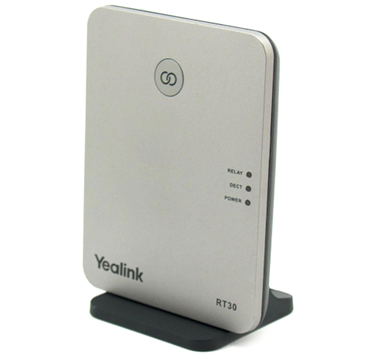
You should have:
- Yealink RT30 DECT Repeater (pictured).
- Base stand (pictured).
- USB power cable.
- Power adapter.
- Quick start guide.
Set up your Yealink RT30 DECT Repeater
The RT30 Repeater receives the DECT signal from your existing W70B base station and extends it into an area where your handset coverage is weak.
Before you start, you'll need:
- A working W70B base station.
- A compatible Yealink DECT handset.
- A mains socket near where you want to position your repeater.
The RT30 Repeater extends your DECT radio coverage. It doesn't add handsets, phone lines or broadband coverage.
Find the right position for your RT30 Repeater
Your RT30 Repeater needs to stay within your W70B base station's existing coverage so it can receive and extend the DECT signal.
Before setting it up:
- Make a call on your handset and slowly walk away from the W70B base station.
- Notice where the call quality starts to reduce.
- Position your RT30 Repeater slightly closer to the W70B base station than this point.
Don't put your RT30 Repeater somewhere the signal from the base station has already been lost.
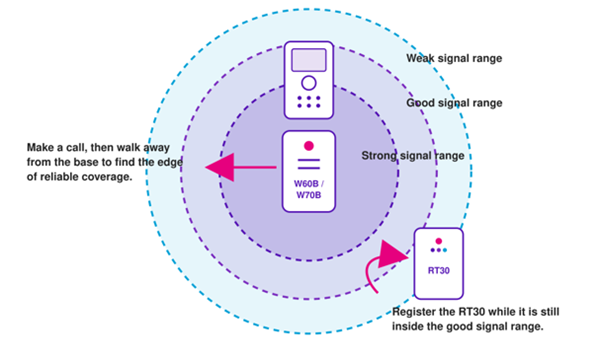
Move the repeater to its final position only after registration is complete.
Connect your RT30 Repeater to power
- Attach the supplied stand to the back of your RT30 Repeater.
- Connect the USB cable and supplied power adapter.
- Check the POWER light is green.
Keep your RT30 Repeater close to your W70B base station while you register it. Once registration is complete, you can move it to the position you chose earlier.
Only use the power supply provided with your RT30 Repeater.
Switch on repeater mode
On a handset that's already registered to your W70B base station:
- Open Settings.
- Select System Settings.
- Select Repeater Mode and confirm the change.
- Let the W70B base station restart if you're prompted.
Wait for the W70B base station to return to its normal status before continuing.
Although you change this setting using your handset, it applies the changes to the W70B base station.
Register your RT30 Repeater to the W70B base station
Keep your RT30 Repeater close to the W70B base station while you complete these steps.
- Press and hold the paging key on your W70B base station until registration mode starts.
- Wait while the DECT light on your RT30 Repeater flashes during registration.
- When registration is complete, the POWER light will be green and the DECT light will be solid green or orange.
A green DECT light means there's a strong connection. If it's orange, your RT30 Repeater is registered but the connection is weaker. Try moving the repeater closer to the W70B base station.
Understand your RT30 Repeater lights
The three lights on the front of your RT30 Repeater show its power, connection quality and call activity.
POWER
- Green – your repeater is switched on.
DECT
- Flashing red – it's searching for a base station and isn't registered yet.
- Flashing orange – it's registering to the base station.
- Solid green – it's registered with a good connection.
- Solid orange – it's registered, but the connection is weak.
RELAY
- Green – a call is passing through the repeater.
- Red – the maximum number of calls has been reached.
Check your extended coverage
Once your RT30 Repeater is registered:
- Start a call while you're within the normal coverage of your W70B base station.
- Slowly walk into the area you want your RT30 Repeater to cover.
- Check the call stays clear as you move between the overlapping coverage areas.
- Check the DECT light on your RT30 Repeater. Green means there's a good connection.
- If the light turns orange or your call becomes noisy, move your RT30 Repeater closer to the W70B base station and try again.
Keep adjusting the position until your call quality and the DECT light remain stable.
Using more than one RT30 Repeater
You can register up to six RT30 Repeaters directly to one W70B base station. Each repeater needs to stay within the base station's coverage.
Register each repeater separately while it's close to the W70B base station. Once registered, keep at least 10 metres between repeaters in their final positions.
You can also use two repeaters in a cascade to extend coverage further in one direction. Both repeaters need to be registered directly to the base first. Cascade configuration is an advanced setup, so ask BT or your administrator for help.
Remember, repeaters extend radio coverage. They don't add handsets, SIP accounts or phone numbers.
Star layout: up to six RT30 Repeaters
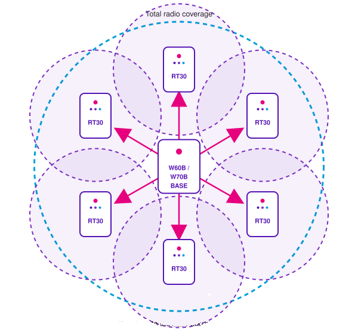
Each repeater registers directly to the base and must remain within its coverage.
Cascade layout: two repeaters in a chain
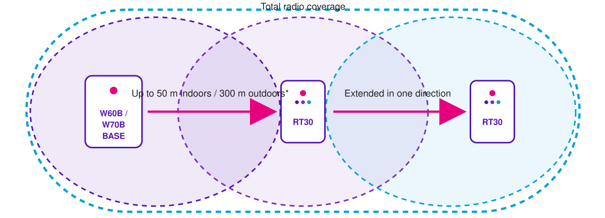
Up to 50m indoors / 300m outdoors is the maximum range in ideal conditions. Walls, metal and electrical equipment reduce coverage.
Help with your RT30 Repeater
The POWER light is off
- Check the USB cable and power adapter.
- Try another mains socket.
The DECT light keeps flashing red
- Move your RT30 Repeater close to the W70B base station.
- Check RT30 Repeater mode is enabled.
- Put the W70B base station into registration mode again.
The DECT light is orange
Your repeater is registered but the radio connection is weak. Move it closer to the W70B base station.
Calls are still poor or dropping
- Place your RT30 Repeater just inside the W70B base station's reliable coverage.
- Avoid thick walls, metal and nearby electrical equipment.
- Restart your RT30 Repeater and test again.
If the problem continues, contact us and we'll be able to help.
Want to learn more?
More about your Yealink RT30 DECT Repeater
For more information about setting up and using your repeater:
View our Yealink RT30 DECT Repeater user guide (PDF, 976KB).
More about Digital Voice for Business
Now your repeater's all set up, learn more about using your digital phone service in our Digital Voice for Business help guide.