There are a few things you’ll need to do to connect your Yealink W73P cordless phone to your Digital Voice for Business service. Follow the steps below.
What’s in the box?
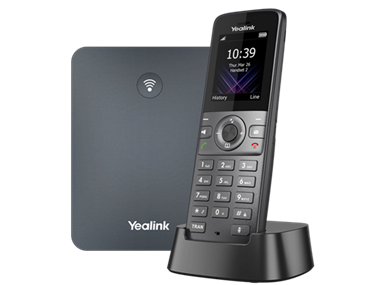
- Yealink W73P phone (pictured)
- Phone charging cradle (pictured)
- Yealink W70B DECT base station (pictured – separate to phone)
- Base stand
- Ethernet cable
- Two power adapters
- Belt clip
- Rechargeable battery
How to set up your phone
To get your phone set up, you’ll need to:
- Power up your base station.
- Find the right place for your base station.
- Power up your phone charging cradle.
- Charge your phone.
Once you’ve followed these steps, there’s a quick way to check you’ve set up your phone successfully.
Power up your base station
To get your base station working, you’ll either need to connect it to mains power or Power over Ethernet (PoE). You can always ask your IT support which option is best for your business.
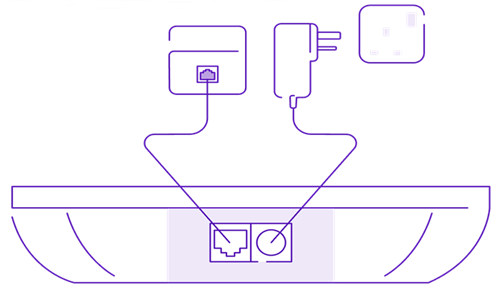
Option A: Connect your base station to mains power
1. First, take the Ethernet cable and plug one end into your base station.
2. Plug the other end of the Ethernet cable into your broadband hub (or your LAN switch.
3. Now connect the power adaptor to your base station.
4. Finally, plug in your power adaptor at the mains and switch it on.
Option B: Connect your base station to Power over Ethernet (PoE)
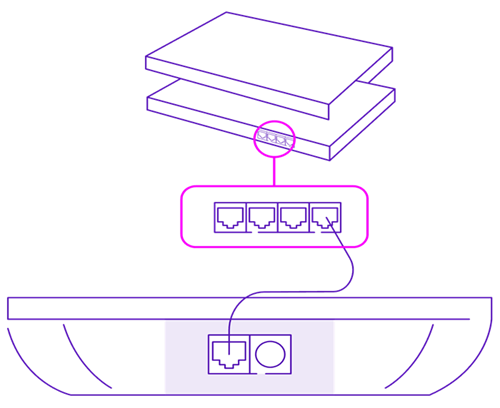
Before you start, you’ll need to check that your broadband hub (or LAN switch, if you have one) is up to IEEE 802.3af standards – read your hub or LAN switch’s user guide or refer to the manufacturer if you’re unsure. Once you’ve confirmed it’s okay to use, you’ll need to:
1. Take the Ethernet cable and plug one end into your base station.
2. Plug the other end of the Ethernet cable into your broadband hub or LAN switch, and your base station should now have power.
Find the right place for your base station
You have two options – you can either set up your base station to stand on a desk, or mount your base station on a wall. Find out how.
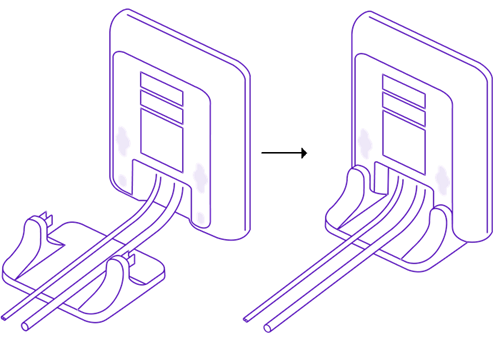
Option A: Stand the base station on a desk
1. Make sure your cable (or cables) are connected to your base station first.
2. Then, snap the stand into place at the back of the base station.
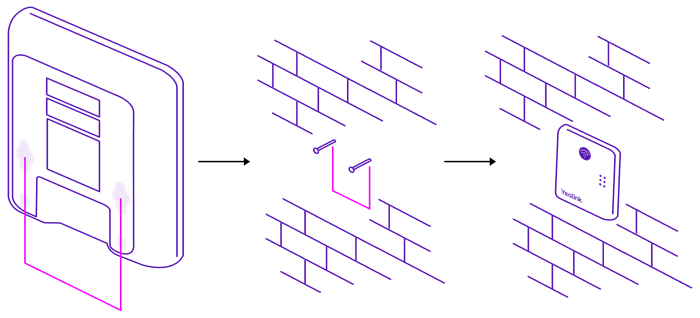
Option B: Mount the base station to a wall
1. Screw two fittings into your wall, 59mm apart, but make sure you avoid any wiring. If you’re not confident doing this safely, ask a professional to help.
2. Then simply hang the base station on the screws.
Power up your phone charging cradle
You’ll now need to power up the cradle that you’ll use to charge up you phone. To do this:
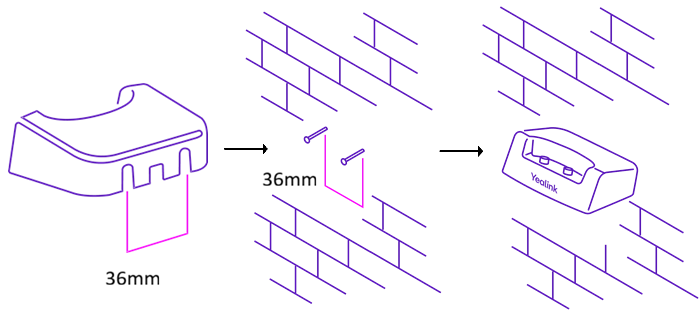
1. First, set the cradle on a desk, near a mains power outlet.
Alternatively, you can mount it on the wall by fitting two screws into your wall, 36mm apart, making sure you avoid any wiring. Then hang the cradle on the screws.
2. Then, connect the cradle to one of the power adapters, and plug the power adapter into the mains power outlet.
3. Finally, switch on the mains power outlet. The phone charging cradle should now have power.
Note: It’s a good idea to have your charging cradle near where you’re most likely to take calls in your office.
Charge your phone
To start charging your phone:
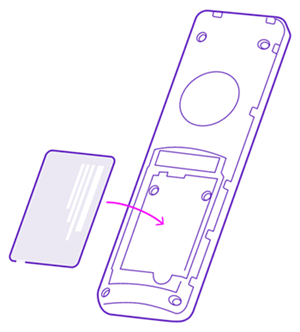
1. Put the rechargeable battery into the back of your phone.
2. Now, switch the phone on by pressing the red end call button.
3. Then, place the phone into the charging cradle (which should be plugged into the mains power outlet).
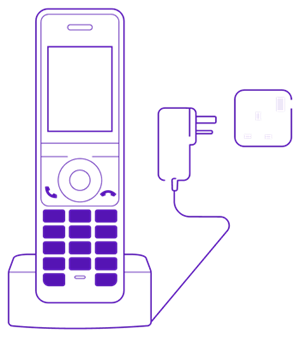
4. As it charges, you’ll be able to view your phone’s battery status at the top of the screen. It takes around 3 hours to fully charge your phone.
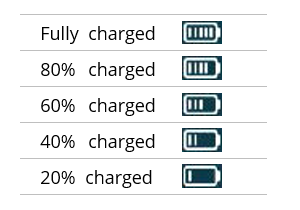
Important: before removing your phone’s battery, make sure to switch the phone off first – if you do not do this, you’ll risk losing data.
And if the battery’s damaged, do not use it.
Check you’re set up
Once you’ve followed the previous steps, your phone should automatically connect to the network and update its firmware. This might take some time, so please be patient.
- When it’s finished, the screen will show a symbol of a phone if it’s been successful.

- If something’s gone wrong, it’ll show a symbol of a phone with a slash through it.

If this happens, get in touch with our Faults team and we’ll be able to help.
Your Digital Voice for Business phone number will then show on the screen.
All set up? It’s time to log in to the portal
Now your phone is working and connected to the network, you can log in to the Digital Voice for Business portal to manage all your phone’s features and settings.
Learn more about using the portal.
More setup help (if you need it)
Learn how to connect additional phones to your base station (if you have them), and use your phone hands-free with a belt clip.
Connect additional phones to your base station
Any additional phones must be registered to your base station first. Here’s what to do.
Step 1: Prepare the base station for registration
Press and hold the Paging button on the base station (the main button at the front) until the LED light starts flashing. This indicates the base is in registration mode.
If the light does not flash, either:
- The button wasn’t held long enough, or
- The base already has eight phones registered to it – the maximum amount supported.
Note: if your phone is already registered to another base station, you’ll need to de-register it before continuing.
Step 2: Register the phone
On the phone, press the Reg soft key.
- The screen will show “Searching” as it looks for the base station.
- Once the base station is found, the display will show “Easy Pairing”.
- A few seconds later, it will show “Subscribed”.
- This will be followed by “Initializing Data”.
If required, the phone may automatically perform a firmware update which can take up to 15 minutes.
Step 3: Confirmation
Once registration is complete, the phone will display its handset number (for example, it might be the second phone registered to this particular base station). This will confirm that it has successfully paired with the base station.
To connect any more phones, just follow the same steps.
Use your phone hands-free with a belt clip
If you need your hands free at work, you can use the belt clip to keep your phone by your side. To use it:
1. Attach the belt clip to your phone by pushing part of the clip into the notch at the back.
2. Then, slot the rest of the clip onto the phone.
3. You can then clip it onto the waistband of your trousers or skirt.
Want to learn more?
Learn more about using your new phone, and your Digital Voice for Business service.
More about your Yealink W73P cordless phone
If you want:
- More detailed setup instructions
- To learn how to use your phone with Digital Voice for Business
Check out our Yealink W73P wireless phone PDF guide (PDF, 1MB).
More about Digital Voice for Business
Now your phone’s all set up, learn more about using your digital phone service on our main Digital Voice for Business help guide.