There are a few things you’ll need to do to connect your Yealink T34W Wi-Fi desk phone to your Digital Voice for Business service. Follow the steps below.
What’s in the box?
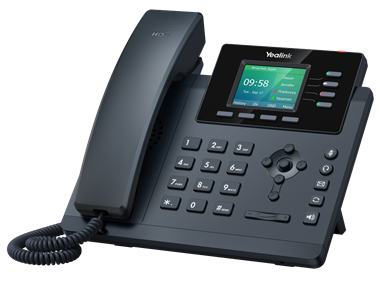
- Yealink T34W phone – including the base unit and handset (pictured)
- Handset cord (pictured)
- Phone stand (pictured)
- Power adapter
- Ethernet cable
How to set up your phone
To get your phone set up, you’ll need to:
Once you’ve followed these steps, there’s a quick way to check you’ve set up your phone successfully.
Find the right place for your phone
You have two options – you can either set up your phone to stand up on a desk, or mount it on a wall. Find out how.
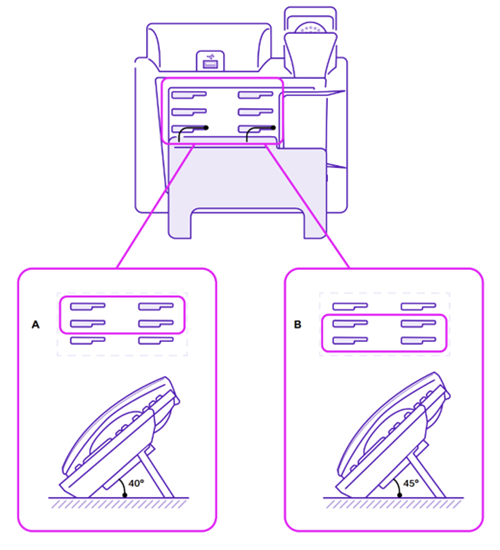
Option A: Stand the phone on a desk
1. Once you’ve unpacked it, turn your phone upside down so you can view the slots.
2. Then slot the phone stand into the slots, depending on the angle you want.
Option B: Mount the phone to a wall
Before you start, make sure you have:
- Wall-mount bracket (sold separately)
- Two wall screws and wall anchors (not included)
- A drill, screwdriver, and pencil
Step 1: Mark the screw holes
Yealink provides a drilling template to help you place the screws in the correct position.
Tape the template to the wall where you want the phone. Mark the screw positions using a pencil. Remove the template.
Step 2: Drill the holes
1. Drill holes where you made the pencil marks.
2. Insert wall anchors if you’re mounting on plasterboard or brick.
3. Partially tighten the screws, leaving a small gap (so the bracket can slide onto them).
Step 3: Attach the wall‑mount bracket
1. Hold the bracket against the wall.
2. Align the holes on the bracket with the screws.
3. Slide the bracket down until it locks into place.
Step 4: Adjust the hookswitch tab
1. This step stops the handset from falling off when the phone is vertical.
2. Pull up the small plastic tab in the cradle.
3. Rotate it so it sticks upward.
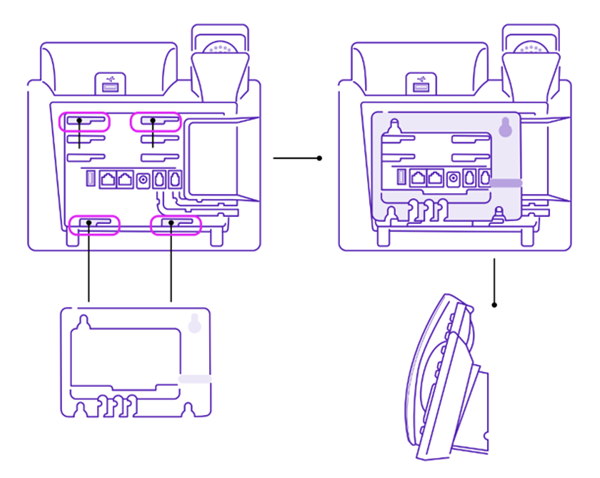
Step 5: Mount the T34W
1. Turn the phone over as shown in the diagram.
2. Align the slots on the back of the phone with the bracket.
3. Push gently until it clicks into place.
Step 6: Connect your cables
Once the phone is on the wall, plug in the handset cord and connect the network cable (PoE or standard).
If using external power, plug in your power adaptor.
The phone will power on and start its normal boot process.
Connect your phone to power and the network
To get your phone working, you’ll either need to connect it to:
- Mains power.
- Or Power over Ethernet (PoE).
You can always ask your IT support which option is best for your business.
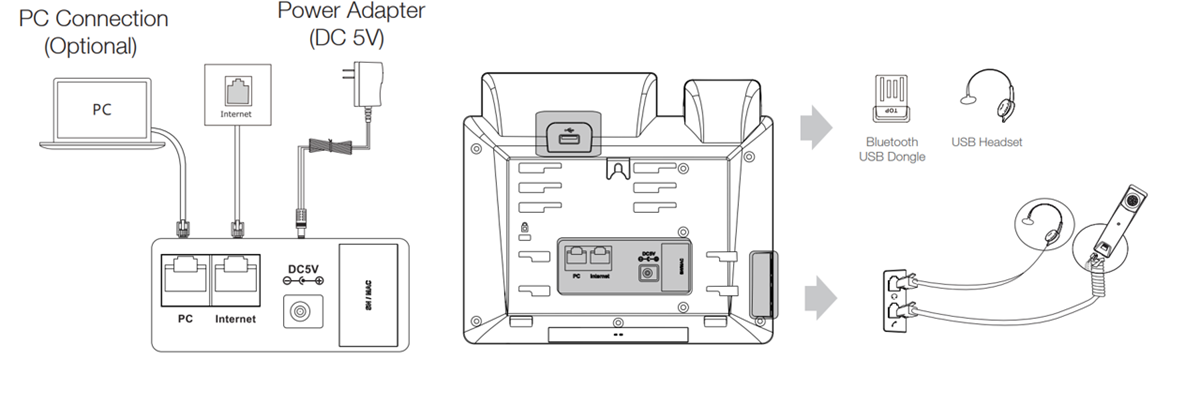
Option A: Connect your phone to mains power
This involves two steps:
1. Connect to mains power first by connecting the DC plug on the power adapter to the DC5V port on the phone. Then plug in the other end of the power adapter to the mains.
2. Then connect to the network using the Ethernet cable OR Wi-Fi.
Using the Ethernet cable
Connect the Ethernet cable between the internet port on the phone and the one on the wall, or on your broadband hub / LAN switch device port.
Using Wi-Fi
If you’re using this method, you’ll need to enable Wi-Fi mode on the phone first to connect to the network.
To do this:
1. Go to Menu, select Basic, then Wi-Fi.
2. Select On from the Wi-Fi field.
3. Select Save.
Once you've enabled the Wi-Fi mode, there are then two ways you can connect to the Wi-Fi network – manually by entering your Wi-Fi password, OR Using WPS.
1. Entering your Wi-Fi password:
- Before you begin, make sure you have the password for the Wi-Fi network you wish to connect to.
- On the phone select Menu, then using the navigation keys, select Basic, Enter, Wi-Fi, and then Enter.
- To find the available network, go to 5 – Available Networks and press Enter. If there’s no available network showing, select Scan first.
- Highlight the wireless network you want and press Connect.
- Enter the Wi-Fi password in the Password field, using the ABC button to select the case and numbers, and then the number pad to choose the letters or numbers needed.
- Select Enabled from the Show Password field to make the password visible – if correct.
- Finally, select Connect.
2. Using Wi-Fi Protected Setup (WPS), which provides a simplified method to connect your device to the Wi-Fi network:
- On the phone, select Menu.
- Then using the navigation keys ,select Basic, Enter, Wi-Fi, then Enter.
- Select WPS, WPS, then OK.
- Then press and hold the WPS button on your broadband hub – continue to keep hold to ensure the WPS connection can be made.
Once connected to the network through one of these methods, the phone will automatically connect to the Digital Voice for Business service and download your telephone details. This may take a couple of minutes.
If you have any issues connecting via Wi-Fi, check out our Wi-Fi help section below.
Option B: Connect your phone using Power over Ethernet (PoE)
Another option is to use the Ethernet cable provided, by connecting it with a PoE-compliant broadband hub, or LAN switch (if you have one).
For it to be compliant, the hub or LAN switch must be up to IEEE 802.3af standards – read your hub or LAN switch’s user guide or refer to the manufacturer if you’re unsure.
How to connect using Power over Ethernet (PoE)
1. Connect the Ethernet cable between the internet port on the phone and an available port on your broadband hub or LAN switch.
2. On the phone itself, select On from the Wi-Fi field.
3. Finally, select Save.
Note:
- If you’re connecting using Power over Ethernet, you do not need to connect your phone to the power adapter.
- The phone can also share the network with another network device such as PC. This is an optional connection.
Once you’ve followed the steps above, your phone should now have power and begin connecting to the network.
Important: do not unplug or remove power to the phone when it’s connecting to the network and doing its updates.
Connected via Wi-Fi? Get more help
My wireless network does not show up when scanning – what should I do?
This might be because the SSID (your Wi-Fi’s name) on your router has been disabled. You will need to manually add the wireless network, and will need the SSID to do this.
You’ll also need to make sure the Wi-Fi mode is activated – if you haven’t already done this, here’s how:
1. Go to Menu, select Basic, then Wi-Fi.
2. Select On from the Wi-Fi field.
3. Select Save.
Then:
1. Go to Menu, Basic and then Wi-Fi.
2. Highlight Known Network(s) and select Add.
3. Enter the SSID of the router.
4. You should see None as the default for the Security Mode field.
- If you select WEP or WPA/WPA2-PSK from the Security Mode field, enter the SSID and desired password.
- If you select 802.1x EAP from the Security Mode field, select the desired EAP method and enter the desired values in the corresponding fields.
5. Finally, select Save.
How can I find out if I’m connected, and the Wi-Fi signal strength?
On the phone, go to Menu, Basic, Wi-Fi, and then Wi-Fi Status.
What Wi-Fi signal strength do I need?
To maintain connection to the network and experience a good quality service, the stronger the Wi-Fi signal strength the better.
Signal strength 3 and 4 show the Wi-Fi network is reliable and should support a quality voice service. On the other hand, signal strength 2 is considered weak, and signal strength 1 is poor.
If you experience consistent voice quality issues, you could try connecting your broadband hub using an Ethernet cable instead.
Will my phone remember the Wi-Fi details?
Yes – once you’ve successfully connected your phone to the network, the Wi-Fi details will be saved in Known Networks on your phone.
Up to five Wi-Fi networks can be saved, and the phone will automatically connect to the one at the top of the list.
If you already have five saved and need to add another, you’ll need to delete one of the existing ones first.
To do this:
In the Known Networks menu, select Option, and then Delete (or the Delete All option).
I want to stop connecting to Wi-Fi and instead connect using the Ethernet cable – how can I do this?
First, you’ll need to deactivate Wi-Fi mode. To do this:
1. On your phone, go to Menu, Basic, and then Wi-Fi.
2. Select Off from the Wi-Fi field.
3. Select Save.
You’ll then need to plug in your Ethernet cable and connect it directly to your broadband hub, or LAN switch (if you have one). For full instructions on how to do this, go to our Connect your phone section above.
My broadband is connected and my Wi-Fi seems okay, but I’m still having issues. What can I do?
You could try switching the Wi-Fi off and back on again. To do this:
1. Go to Menu, Basic and then Wi-Fi.
2. Select Off in the Wi-Fi field, and select Save. This will disconnect the Wi-Fi.
3. Then in the same menu, select On and Save.
The phone will automatically reconnect to the Wi-Fi.
Common Wi-Fi interferences
- Everyday appliances – things like microwaves, fluorescent lights, power cables and adapters emit signals that can interfere with Wi-Fi.
- Wireless devices – wireless headsets, keyboards, mice, activity trackers and security cameras also emit signals that can interfere and slow things down.
- Building materials – dense materials such as concrete, metal and stone are not good for wireless signals. Reflective surfaces such as mirrors and foil found in modern building insulation can cause erratic Wi-Fi signals.
- Neighbouring Wi-Fi networks – strong Wi-Fi signals in close proximity (especially in populated areas) can reduce the performance of both networks.
Tips on reducing W-Fi interferences
- Move your broadband hub away from nearby routers, appliances, other wireless devices and dense building materials.
- Unplug appliances and devices when not in use.
- Avoid using too many wireless gadgets that are within close proximity of each other at the same time.
- Try using a different wireless frequency – for example, 2.4GHz instead of 5GHz – or a different wireless band.
- Consider upgrading your broadband hub or solution. Wi-Fi extension solutions can extend your Wi-Fi network.
Check you’re set up
Once you’ve followed the previous steps, your phone should automatically connect to the network and update its firmware. This might take some time, so please be patient.
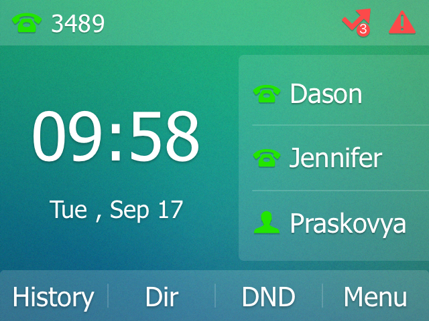
- When it’s finished, the screen will show a symbol of a green phone if it’s been successful.

- If something’s gone wrong, it’ll show a symbol of a grey phone.

If this happens, get in touch with our Faults team and we’ll be able to help.
The screen will also show your phone’s line number in the top left corner.
All set up? It’s time to log in to the portal
Now your phone is working and connected to the network, you can log in to the Digital Voice for Business portal to manage all your phone’s features and settings.
Learn more about using the portal.
Want to learn more?
Learn more about using your new phone, and your Digital Voice for Business service.
More about your Yealink T34W Wi-Fi desk phone
If you want:
- More detailed setup instructions
- To learn how to use your phone with Digital Voice for Business
Check out our Yealink T34W Wi-Fi desk phone PDF guide (PDF, 1.1MB).
More about Digital Voice for Business
Now your phone’s all set up, learn more about using your digital phone service on our main Digital Voice for Business help guide.